Secure online quizzes & exams, for any subject
Look away,
and the exam locks.
QuizGuard runs timed, locked-down exams in the browser. Leave the exam and the questions vanish instantly. The server then locks the student out while their clock keeps running. Teachers watch the whole room live and get marks back without hand-grading.
- Any subject, even code
- Works alongside your LMS
- Your colors and logo
How the lockout works
Every pause costs real exam time.
Most exam tools log a tab switch for someone to read later. QuizGuard acts on it straight away. The server makes the decision, so switching off the browser code gains a student nothing.
-
The questions vanish, instantly
The moment the exam loses focus, the paper blurs, before any network request is made. A screenshot tool that grabs focus first finds the questions already hidden.
-
The student is locked out
By default, the first pause locks them out for 5 minutes, the second for 10, then 15, then 20. The exam clock keeps running the whole time. From live monitoring, a teacher can let a student back in early.
-
The fifth pause submits the paper
The attempt is submitted with the answers exactly as they stood. Anything that happens while a student is already locked out is logged, but doesn't count as another pause.
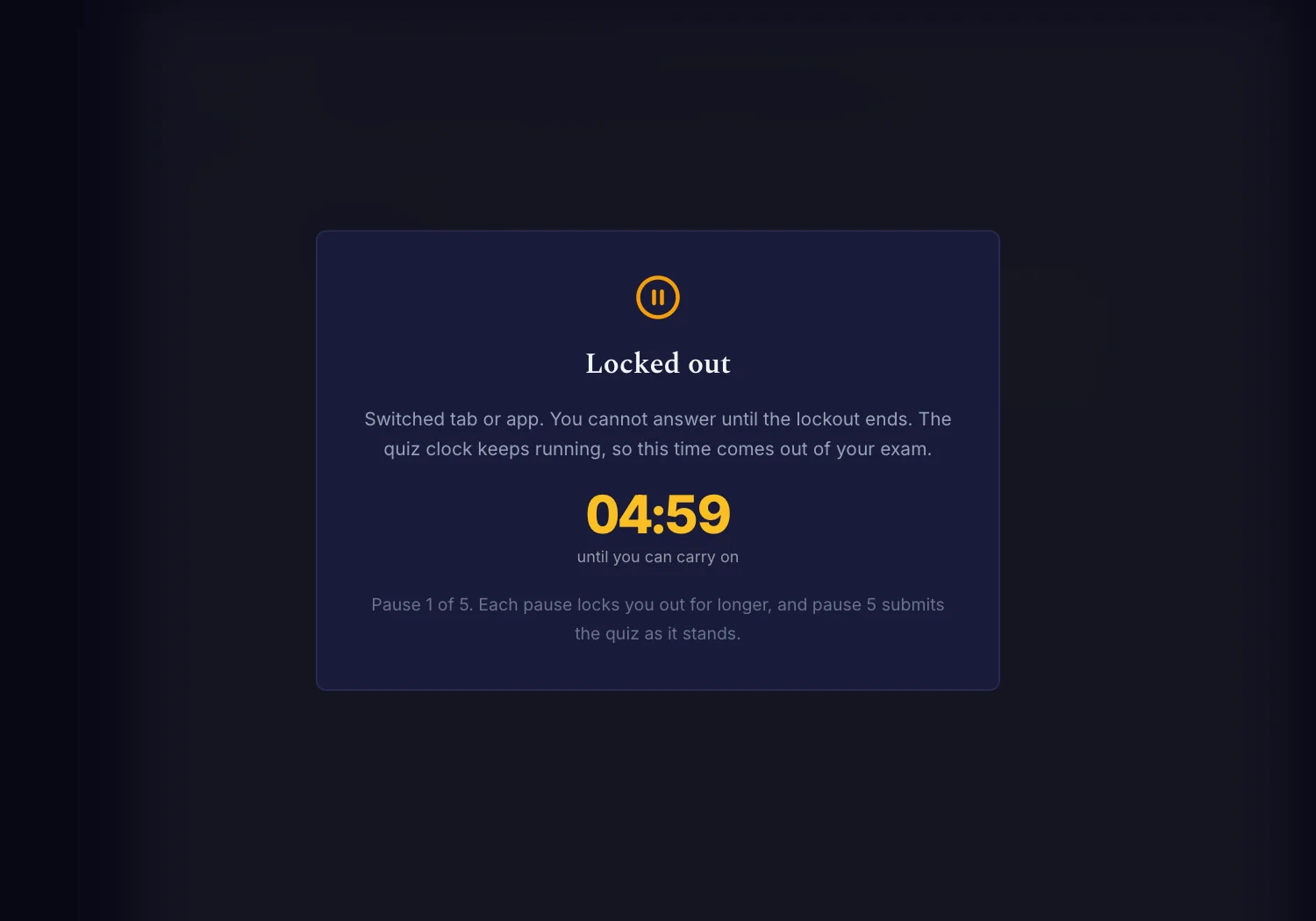
These are the defaults. Each quiz can set its own pause limit and lockout length, or a lockout of 0 to log without locking.
What counts as leaving
- Switching tab or app
- Clicking out of the window
- Leaving fullscreen
- Opening developer tools
- Losing the connection
- Screenshot shortcuts
Copy, paste, cut, right-click and print are blocked outright, and every attempt is logged.
What no web page can see
A phone camera or a second laptop is invisible to any browser-based exam, QuizGuard included. That's why teachers get a live view of the room and a full violation log. Software can't replace an invigilator, but it can make their job far easier.
Not just programming
Built for every subject.
From a Biology midterm to a placement test, every course gets the same secure exam.
- Multiple choiceOne right answer. Options can be shuffled for each student.
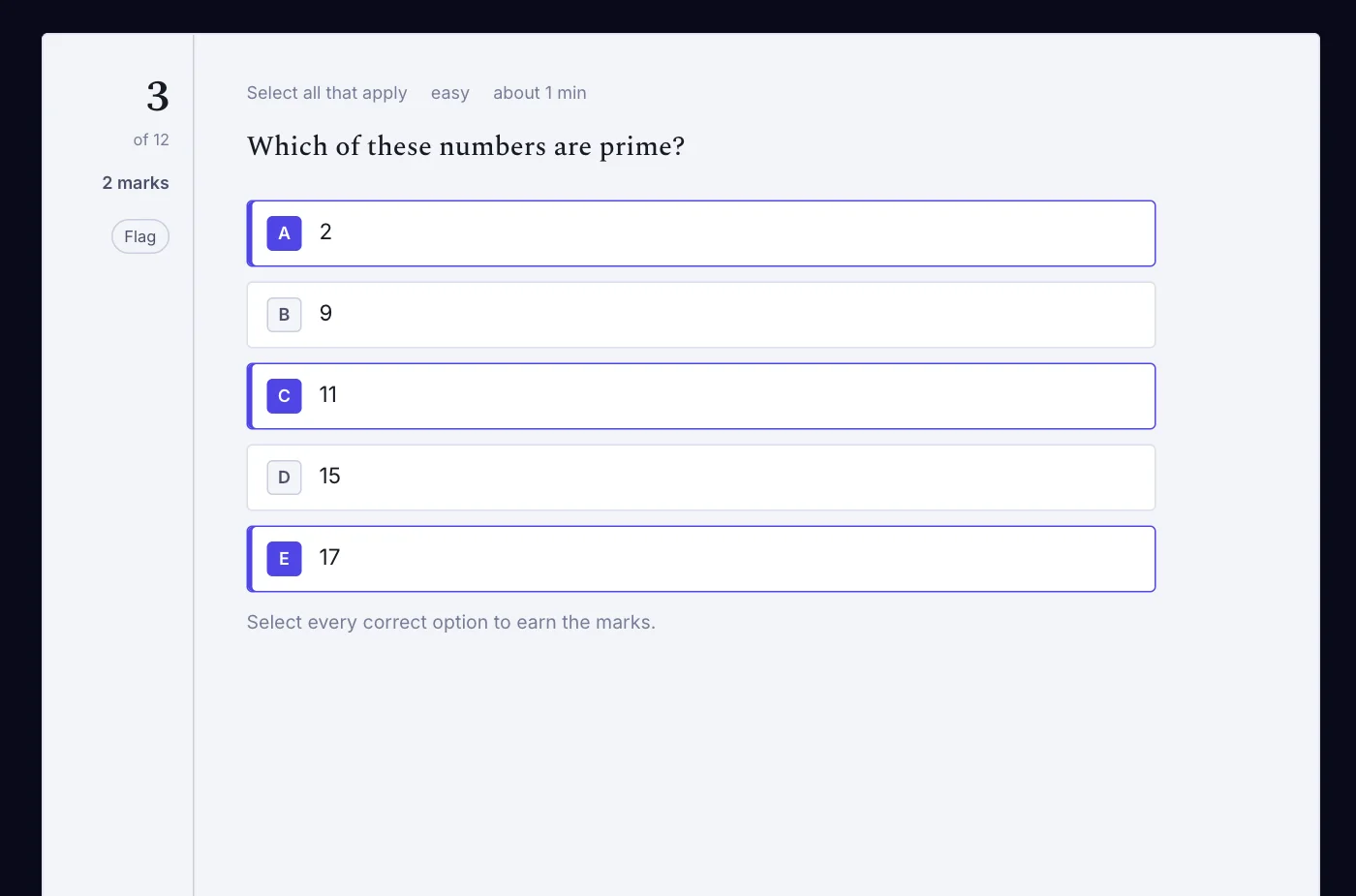
- Select all that applyMarked as an exact set, so guessing every box earns nothing.
- True / FalseQuick checks of understanding.
- Fill in the blankUpper and lower case and extra spaces are forgiven.
All four are marked automatically. Negative marking is optional, and a blank answer is never penalised.
Teaching programming?
Real code. Run in a sandbox.
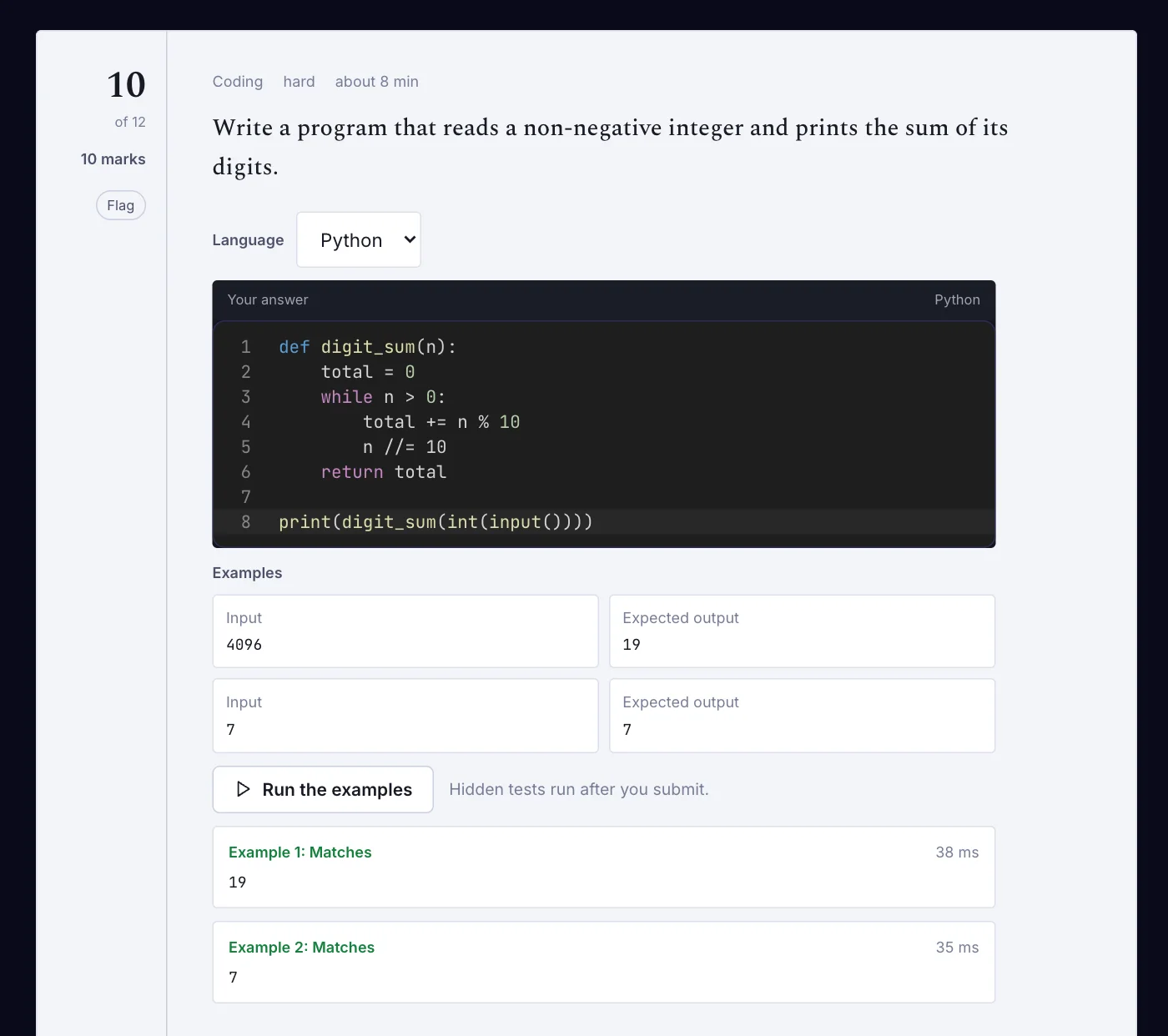
Students write code in a proper editor and run it against the examples during the exam. After they submit, every answer is graded against all the test cases, hidden ones included.
- C
- C++
- Java
- Python
- JavaScript
- Dart
Seven question types for code: write a program, fix the code, complete the program, predict the output, arrange the lines, find the compilation error, and predict the runtime error.
For teachers
Run the exam. Skip the marking.
Watch the whole room, live
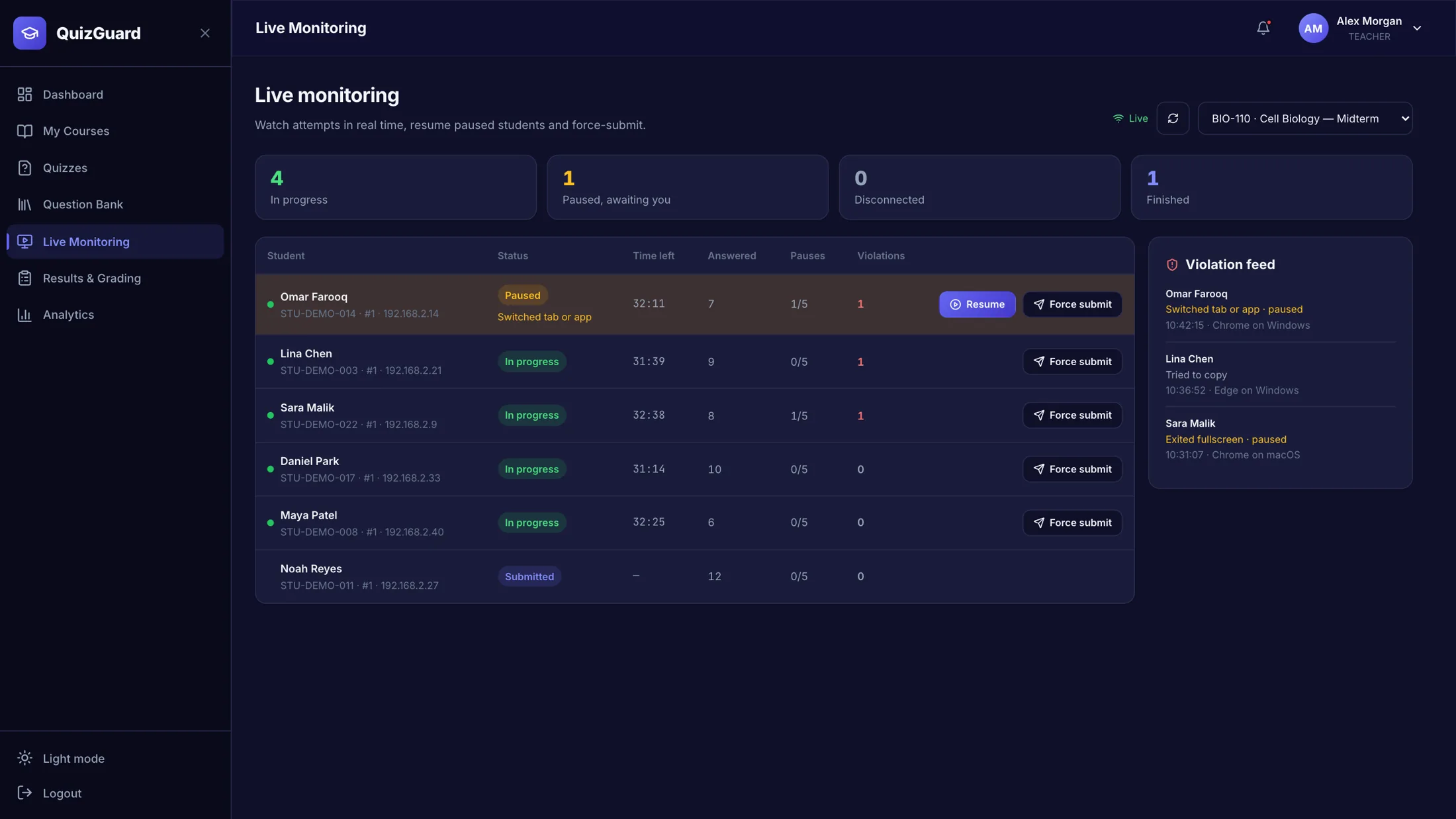
- See who is writing, paused, disconnected or finished, with time left and answers given.
- Violations appear in a feed the moment they happen.
- Let a locked-out student back in early, or force-submit an attempt.
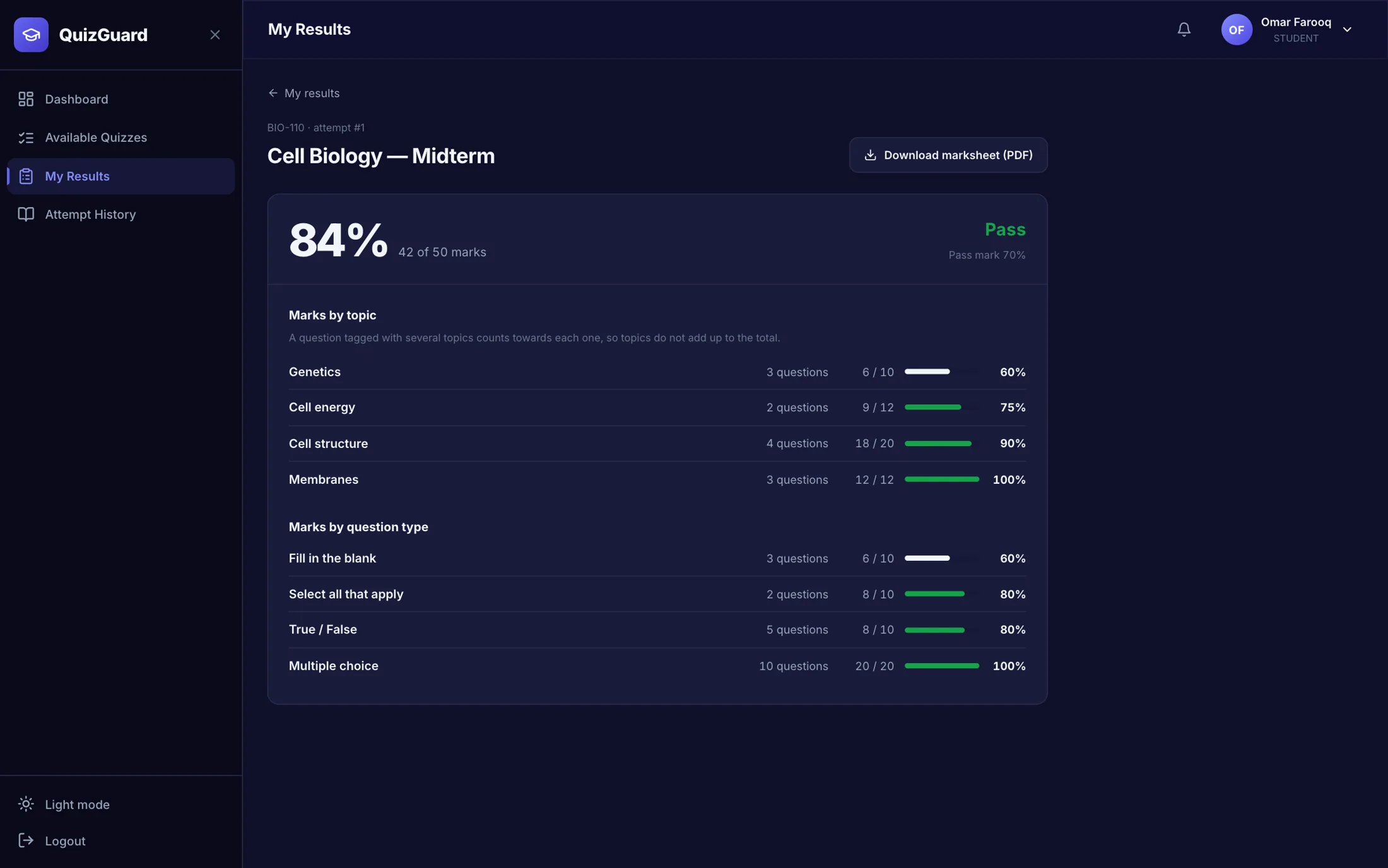
Graded automatically. Even the code.
- Objective questions are marked the moment a paper is submitted, and code is graded in the background.
- Review written and code answers yourself, and leave feedback.
- Results wait until everyone has finished or the quiz closes, so nobody learns the paper from a classmate. You can release them early if you choose.
- Students can download their marksheet as a PDF.
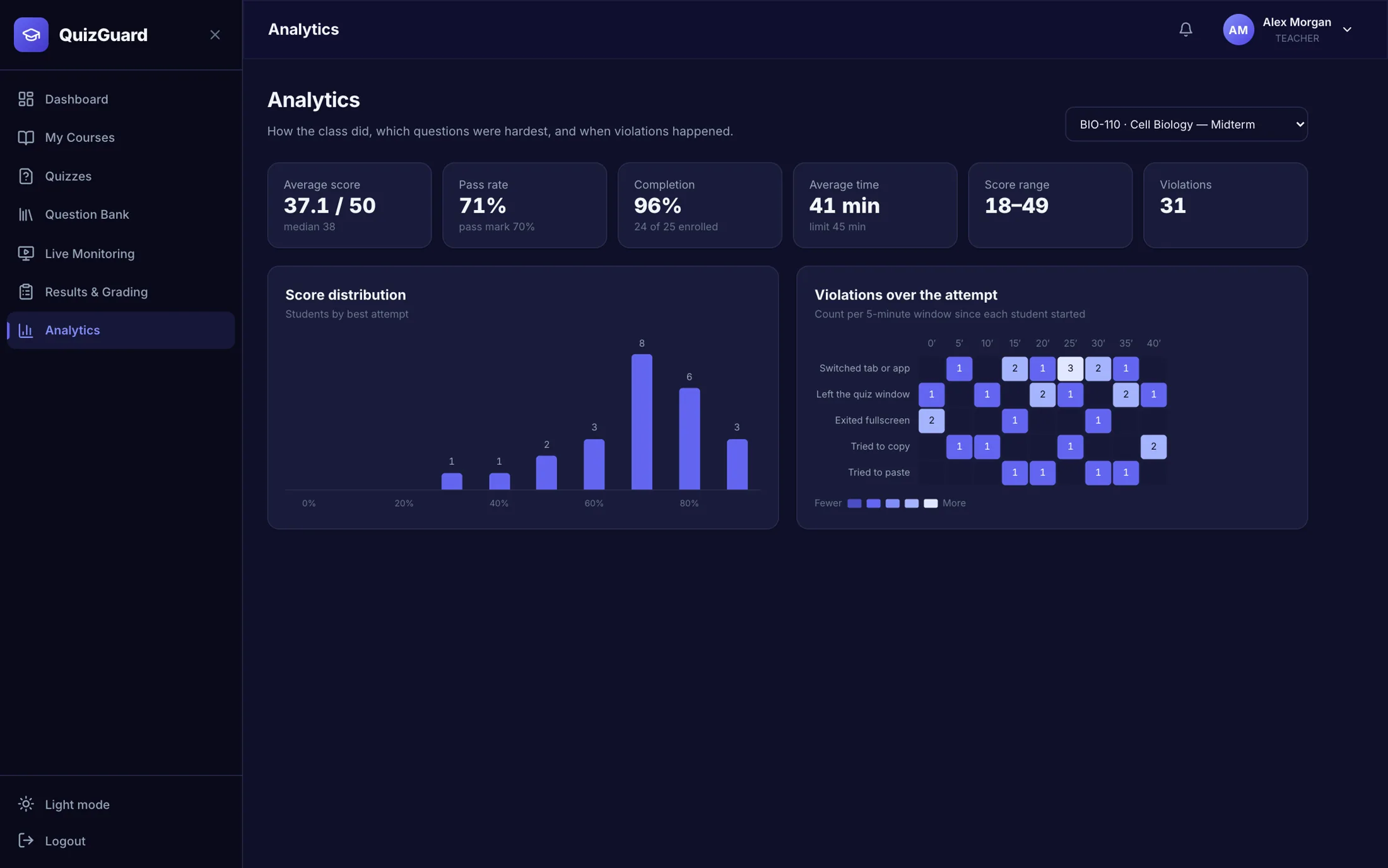
See how the class did, and when they looked away
- See the score distribution, pass rate, completion and average time.
- Find out which questions were hardest.
- A heatmap shows which kinds of violation happened, and when.
Already on an LMS?
Works alongside the LMS you already use.
Keep your LMS for everything else. QuizGuard exchanges files with it, so there is nothing to install inside it.
Bring in
- Questions from Moodle (GIFT and Aiken)
- Google Forms, through a script you paste into the form
- CSV from Excel or Google Sheets, and JSON
- Student rosters as .xlsx or CSV
Send out
- Results as CSV
- PDF marksheets
- Questions as JSON, to reuse elsewhere
A shared question bank keeps your best questions ready for the next quiz.
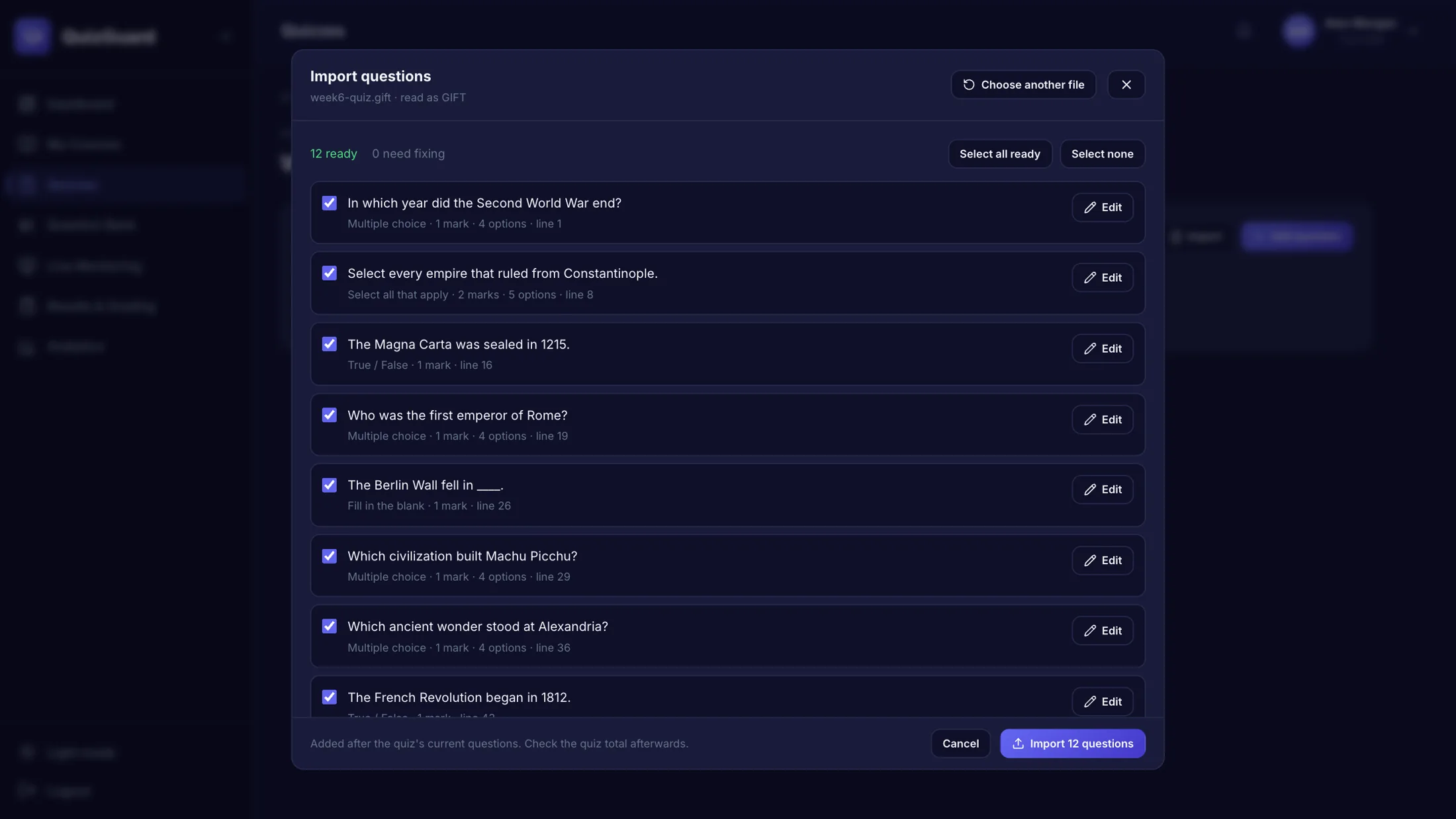
Your brand, your systems
Customized to fit your institution.
Every color in QuizGuard comes from a single theme, so it can wear your colors and logo, in light or dark mode. Need it to fit the way your institution already works? We'll tailor the setup with you.
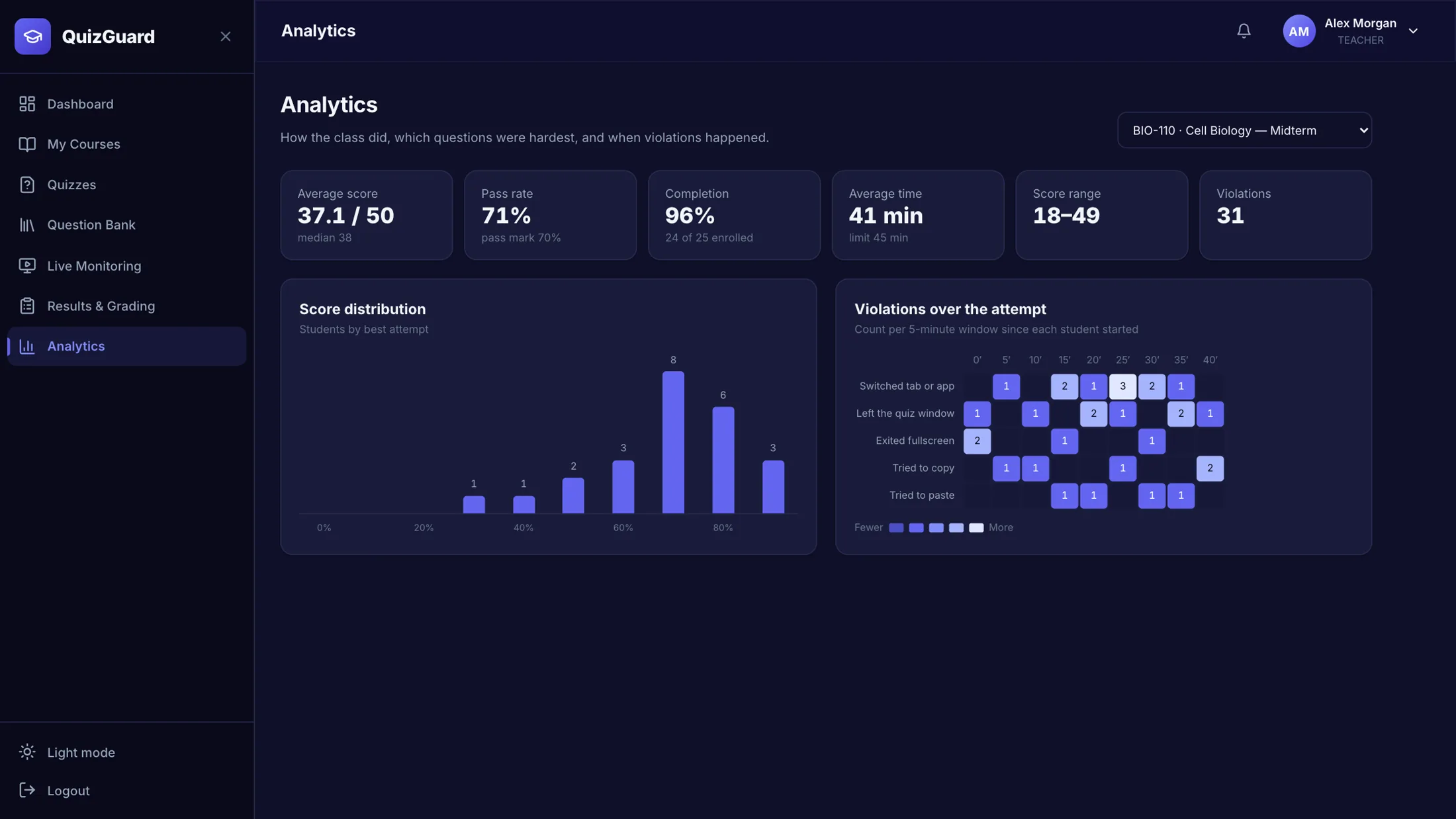
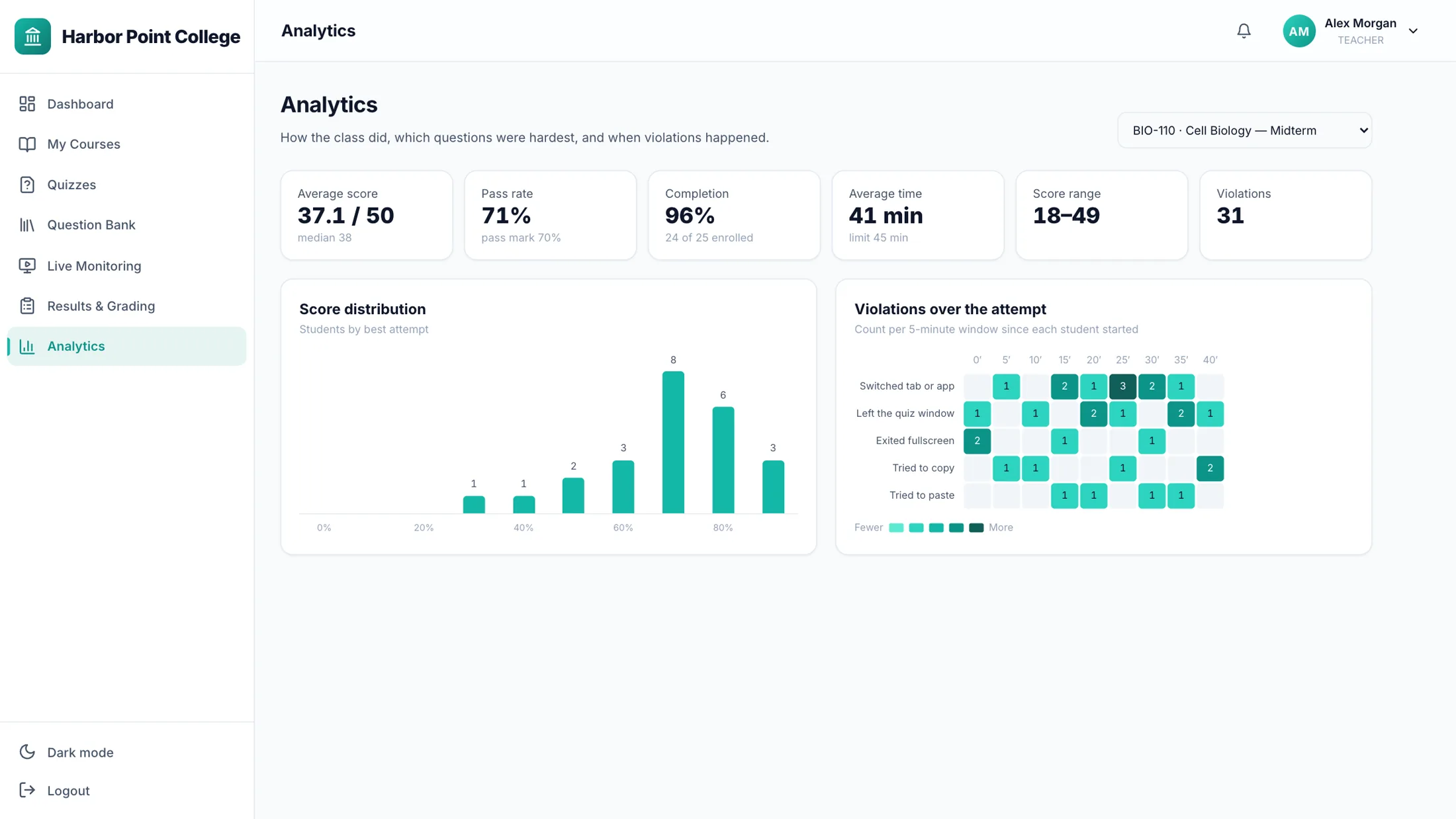
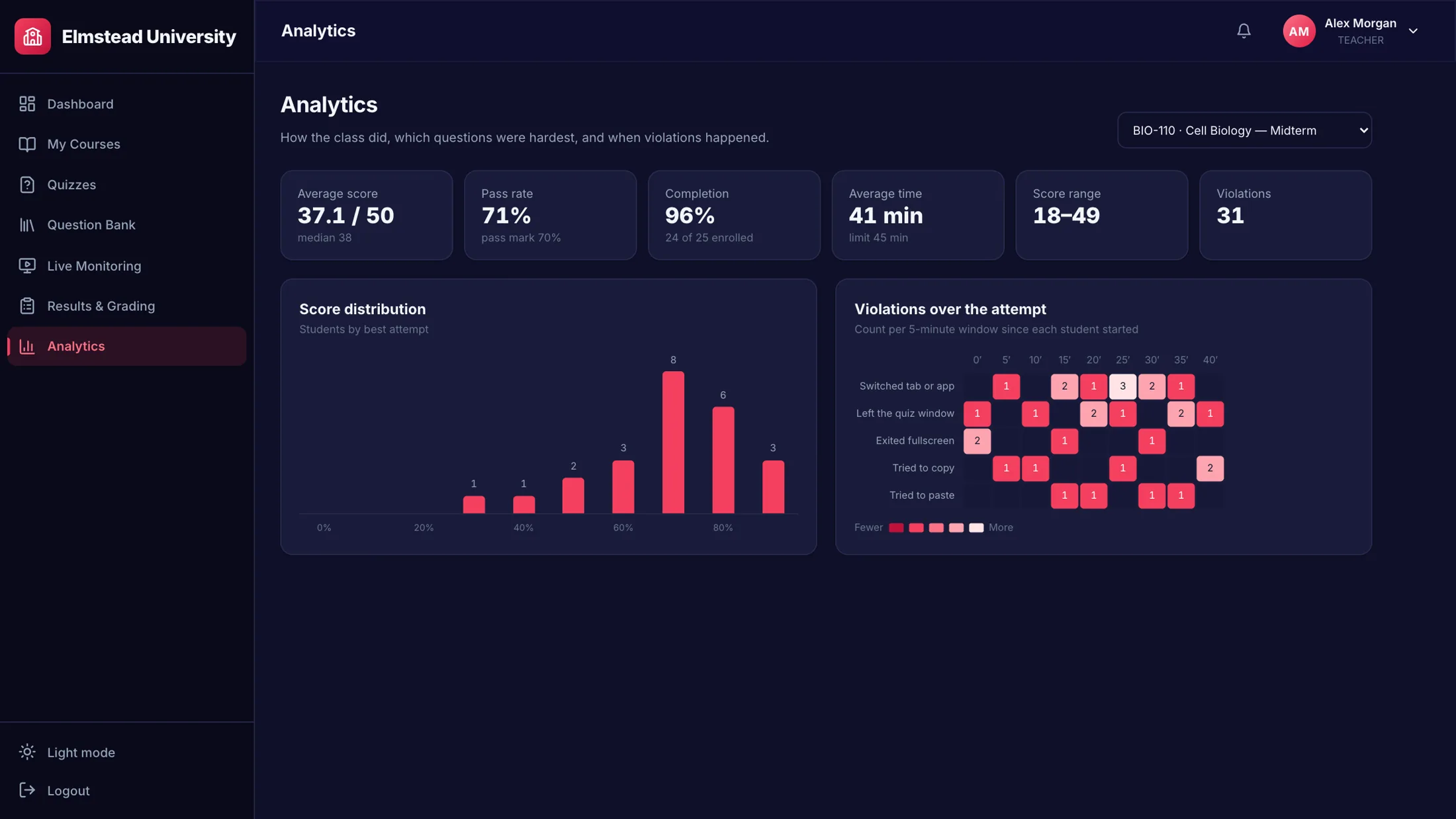
Harbor Point College and Elmstead University are example institutions.
Under the hood
Fair for students. Solid for you.
The server keeps time
The exam clock runs on the server. Changing the computer's clock doesn't buy a single second.
A dropped connection loses nothing saved
Answers are saved to the server every 10 seconds. If the Wi-Fi goes or a laptop dies, they come back when the student reopens the exam.
Fullscreen, required
The exam only accepts answers in fullscreen. Opening it in a second tab counts as leaving.
One attempt means one
Attempt limits hold even if a student opens the quiz twice at the same moment.
The right view for each role
Students, teachers and administrators each see only what they should. Answer keys stay on the server during the exam.
A log nobody can edit
Sign-ins, starts, pauses, submissions and result releases are recorded in a read-only audit log for administrators.
FAQ
Questions, answered.
Does QuizGuard replace our LMS?
No. It runs the exams and works alongside the LMS you already have. Questions and student rosters come in as files (Moodle GIFT and Aiken, Google Forms, CSV, JSON, Excel), and results go out as CSV and PDF marksheets. There's no plug-in to install in your LMS.
Which subjects can we use it for?
Any subject. Multiple choice, select all that apply, true/false and fill in the blank cover most courses, and programming classes also get real code questions in C, C++, Java, Python, JavaScript and Dart.
Can a student still cheat with a phone?
No web page can see a phone camera or a second device, and anyone who says otherwise is overselling. QuizGuard closes off everything that happens on the exam device itself, and gives the teacher a live view of the room and a violation log for the rest.
What happens if a student's internet drops?
Answers are saved to the server every 10 seconds, and they come back when the student reopens the exam. Losing the connection pauses the exam like any other exit, and the teacher can see it and let the student back in from live monitoring.
Can we change the lockout rules?
Yes, for each quiz: the number of pauses allowed, how long each lockout lasts (or none at all), and whether the paper submits itself when time runs out.
Can it use our institution's branding?
Yes: your colors, your logo, and light or dark mode. If you need QuizGuard to fit your existing systems, we'll go through it with you in the demo.
How do students sign in?
With their student ID and a password. Administrators can create accounts in bulk from a roster spreadsheet.
Request a demo
See QuizGuard run a real exam.
Tell us a little about your institution and we'll get in touch to arrange a walkthrough.
- A live exam from both sides, student and teacher
- Your question types, subjects and class sizes
- Branding and how QuizGuard would fit your setup